Configure the widget properties
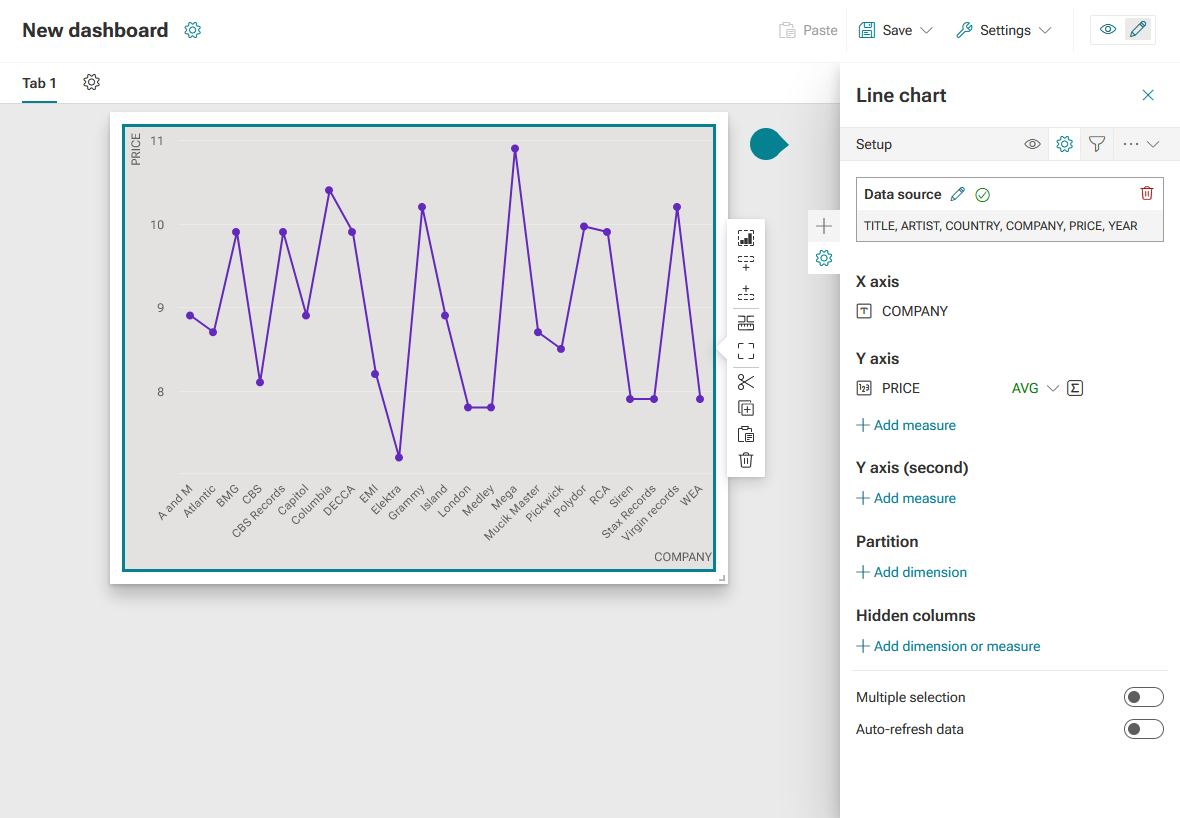
You can specify the properties of a widget in the corresponding configuration panel. In the configuration panel, you can select a data source, specify the data to display in the widget, and configure the widget appearance. In addition, you can set filter criteria, specify actions, and define thresholds.
Note that you must first assign a data source to the widget before you can configure the data, filters, actions, or thresholds.
Click a widget on the dashboard. The
 Setup panel of the widget is displayed.
Click
 Appearance to define the widget layout. Here you can also change the widget type afterwards.
You can find more details about the display options on the individual widget pages.
Click
Setup to select a data source and to specify the data to display in the widget.Click
 Filters to set criteria to filter data from other widgets.
Click ... (More options) >
 Actions to specify actions that will be performed when you make a selection in a widget.
You can find more details about the action settings in the Specify actions for widgets chapter.
Click ... (More options) >
 Thresholds to define thresholds for numeric measures to display their status.
You can find more details about the thresholds settings on the individual Assign data sources to widgets pages. You can define thresholds only for specific widgets.
You have configured the widget.
Configuration panel of the Line chart widget with the Setup panel open. A data source is assigned and a dimension and a measure are added.