Specify the criteria to analyze in the widget
You need to specify the criteria, that is, the dimensions and measures, that you want to analyze in a widget.
Depending on the widget type, different options are available in the configuration panel. For more details, see the Widgets chapter.
Please note that the maximum number of characters in a single cell of a text column is limited to 2000 characters. All characters exceeding this maximum number are automatically truncated. A corresponding hint is displayed.
Prerequisite
You have already assigned a data source to the widget.
Click a widget on the dashboard. The
 Setup panel of the widget is displayed.
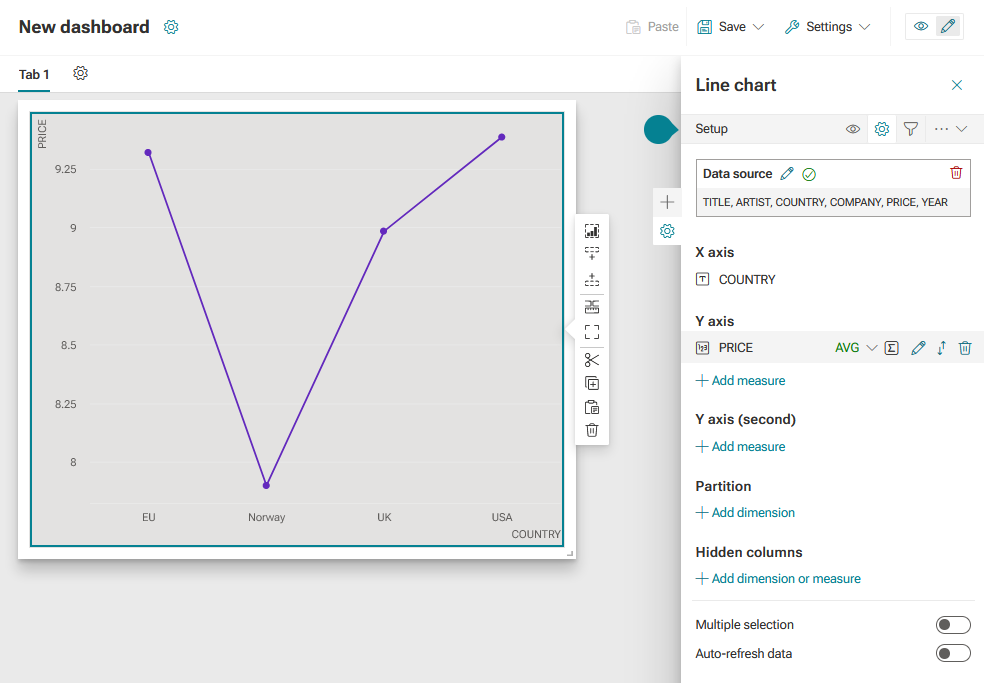
Make your settings. For example, add a dimension to the X-axis and a measure to the Y-axis.
Click Add dimension. The X-axis columns panel opens.
Select a column that you want to use as a dimension on the X-axis.
Click Done. The selected column is added as a dimension to the Setup panel.
Move the mouse pointer over the dimension and click
 Edit.
Edit.Specify the dimension setting, for example, the display name.
Click Done.
Click Add measure. The Y-axis columns panel opens.
Select a column that you want to use as a measure on the Y-axis.
Click Done. The selected column is added as a measure to the Setup panel.
Move the mouse pointer over the measure and click
Edit.Specify the measure setting, for example, the display name, the format, or aggregation.
Click Done.
Click the
 icon -> Save.
Your settings are applied. The data is displayed in the widget based on your specified settings.
Setup panel of the Line chart widget with a data source assigned, a dimension on the X-axis, and a measure on the Y-axis.