Group widgets
You can combine several widgets into one group. Grouping helps you arrange widgets more easily. A group can consist of several widgets that display charts, for example, as well as widgets that define a header and a footer.
Open or create a dashboard.
Select the widget on the dashboard. The side panel of the widget is displayed.
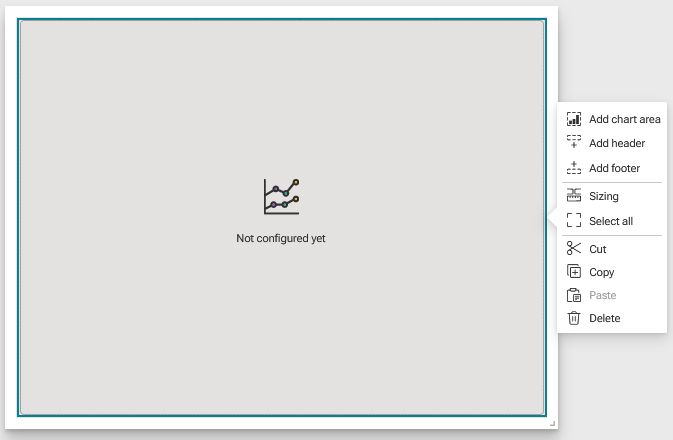
Click Add chart area in the side panel. An area is added to the widget as a placeholder to add another widget. You can add one or more chart areas to the group.
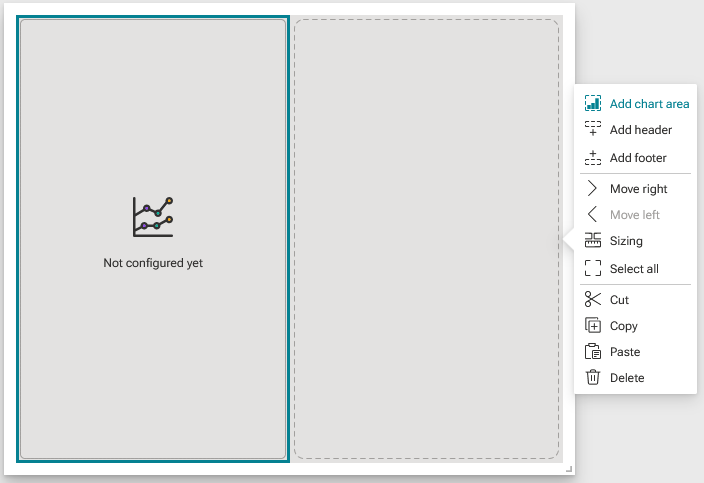
Select a center area and click Add header or Add footer in the side panel. An area is added at the top or bottom of the group as a placeholder for an additional widget.
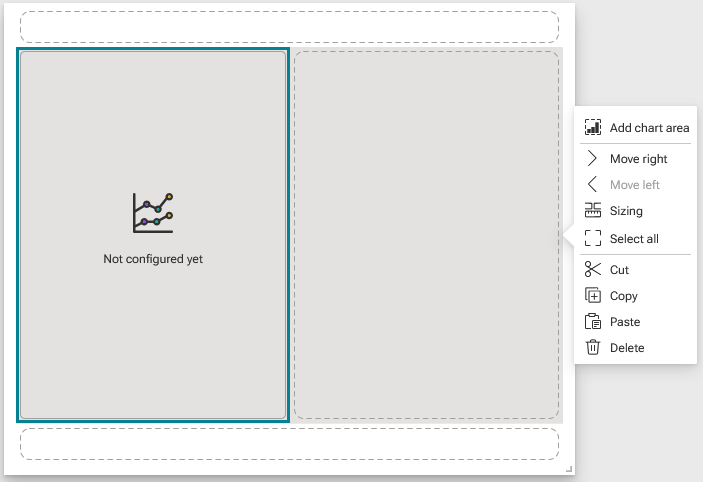
You can split a center area, a header, or a footer within the group. Select a center area, a header, or a footer in the group and click Add chart area in the side panel.
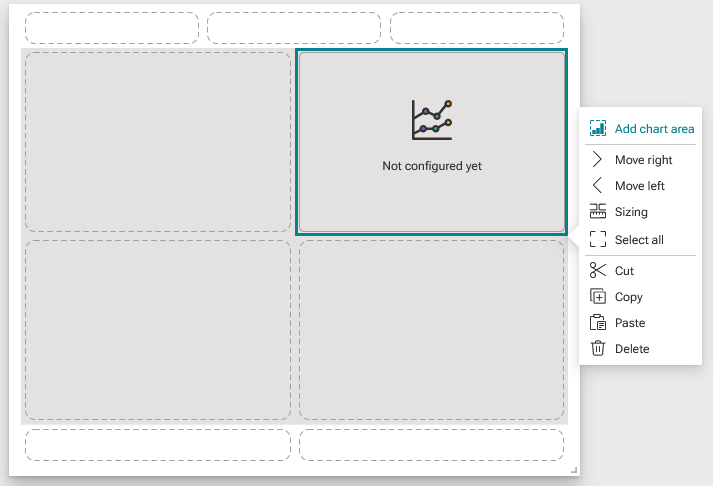
You can move the areas within the group. Depending on the number of areas and their position, you can move areas to the left, right, down, or up. Select an area and click the relevant option in the side panel.
You can configure the layout of the group. For example, you can configure the arrangement of the center areas, or the size of the header or footer.
Select a center area, a header, or a footer.
Click Sizing in the side panel. The panel to configure the layout opens.
You can select a predefined column layout for the center areas.
Column layout: The areas added to the group are arranged horizontally like columns.
Stacked layout: The areas added to the group are arranged vertically like rows.
Advanced list: Provides an advanced column layout that allows to specify the number of the columns.
You can specify the sizing of the areas in the group.
Auto: Automatically adjusts the size of the areas when you change the size of the group.
Pixel: Specify the size of the individual areas in the group in pixels.
Ratio: Specify the size of the individual areas in the group as a percentage.
Fix header height and Fix footer height: Fixes the hight of the header or footer areas.
You can replace the placeholders in the group with appropriate widgets. You can only insert certain widgets in the header and footer, for example, a micro chart, a title, or an image. Click an area and select a widget in the Add widget panel.
Example
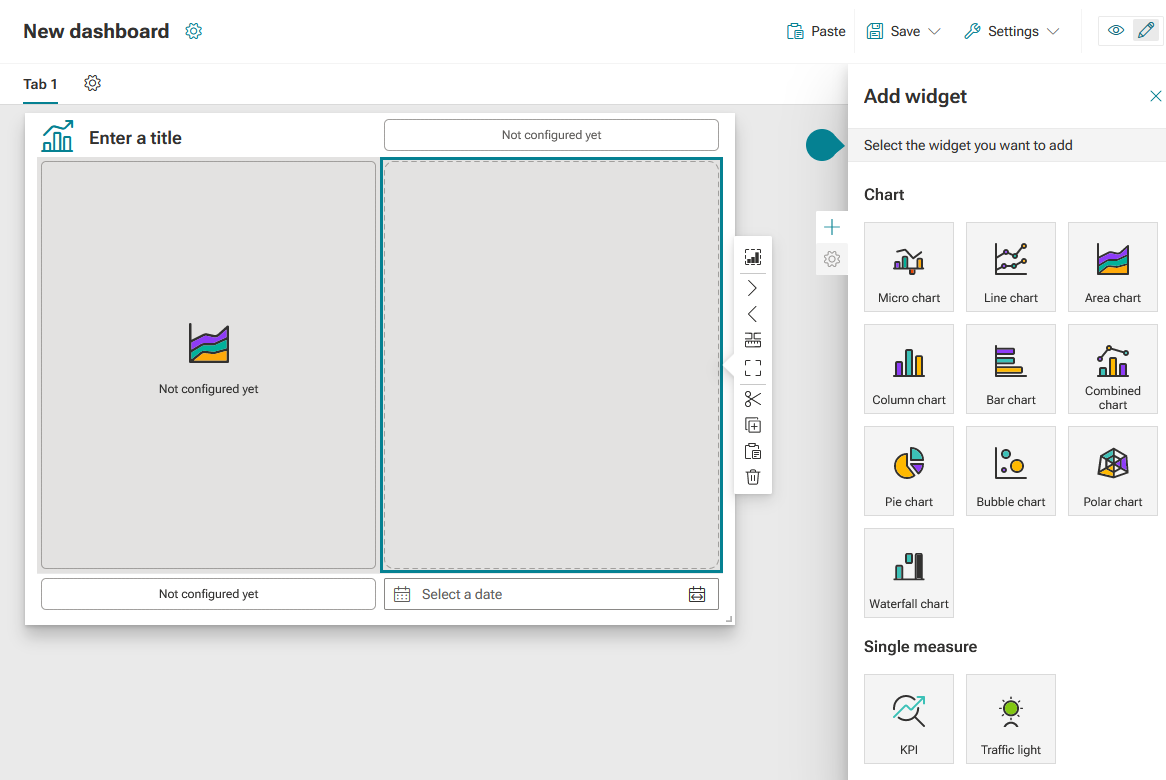
To assign a data source to a widget within the group, select a widget in the group and configure the data source in the widget's Setup panel.
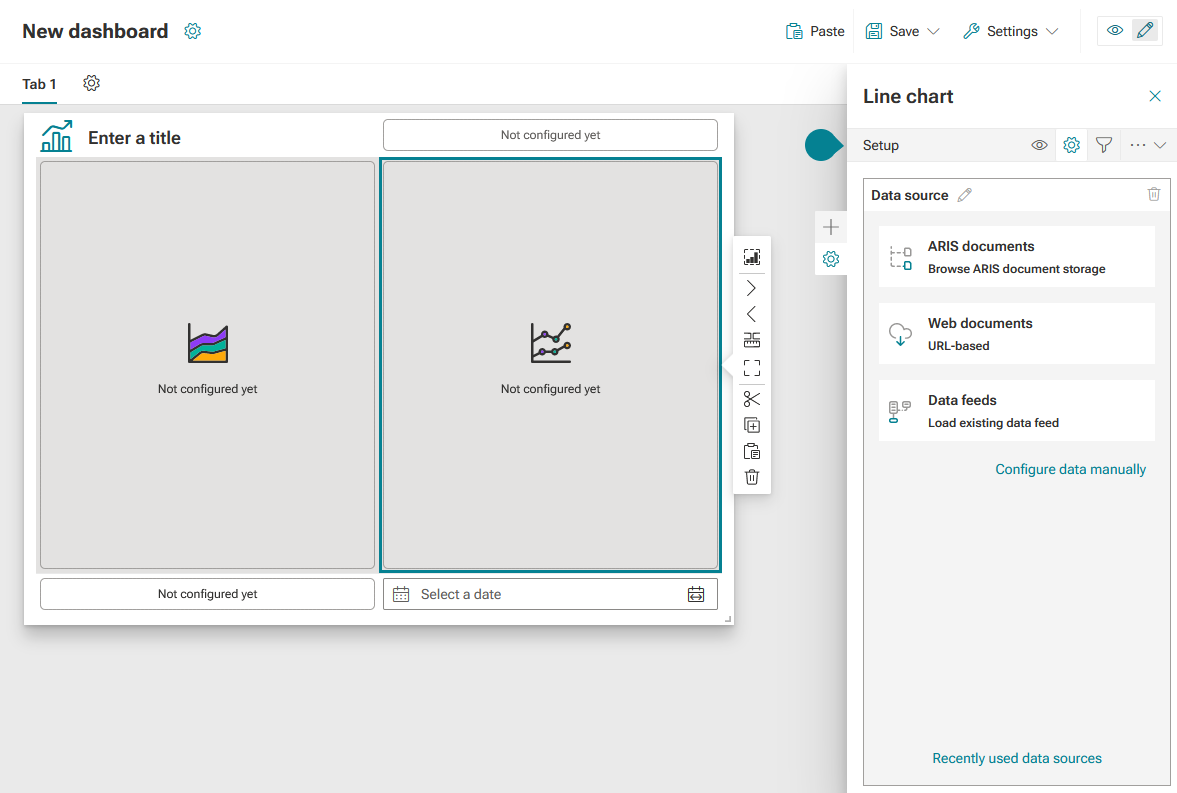
To move a widget group on the dashboard, click the widget group, hold down the mouse button, and move the widget to the new location on the dashboard.
You grouped widgets, assigned data to each widget, and configured the group layout.