Use frozen model column/row
You can freeze parts of models to prevent them from moving when you scroll. This helps you to display objects of a model side-by-side that are placed far apart, and to work on different parts of the model.
You can freeze the column and row of opened non-lane models and lane models. A non-lane model is, for example, a model of type EPC. A lane model is, for example, a model of EPC (table display) type.
For non-lane models, you can freeze the column and row in parallel. For non-lane models, you can also set the frozen column and row to be visible even when not scrolling.
You can freeze the column and row of a non-lane model at any position at once. The following example is based on a model of type EPC.
Activate the Model tab bar.
Click
 Freeze/Unfreeze > Freeze column/row. Position lines are displayed in the modeling area.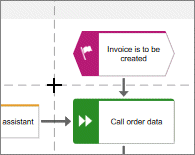
Click the position where the row and column should be frozen.
If you scroll to the right, a separator is displayed between the frozen column and the scroll area on the right side.
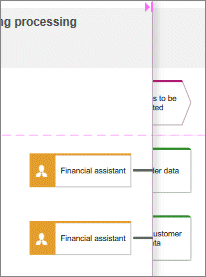
If you scroll down, a separator is displayed between the frozen row and the scroll area below.
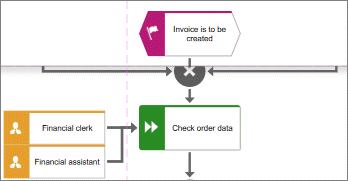
If you scroll to the right and down, both separators are displayed.
You have frozen a column and a row and moved the scrollable area.
You can freeze the first row or the first column of an opened lane model. If another row or column was previously frozen, its freezing is removed.
In an open model, activate the Model tab bar.
Freeze the required area.
If you want to freeze the first row, click
Freeze/Unfreeze > Freeze first row.The first row is frozen, which is indicated by a downward arrow. If you scroll down, a separator is displayed between the frozen row and the scroll area below.
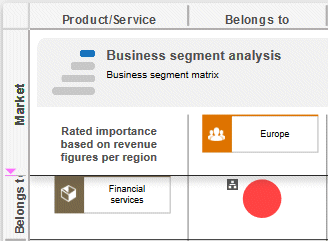
If you want to freeze the first column, click
Freeze/Unfreeze > Freeze first column.The first column is frozen, which is indicated by an arrow to the right. If you scroll to the right, a separator is displayed between the frozen column and the scroll area on the right side.
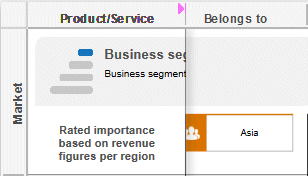
You have frozen a column or a row of a lane model and moved the scrollable area.
You can freeze individual columns and rows or both a column and row of an opened lane model. If another row or column was previously frozen, its freezing is removed.
Activate the Model tab bar.
Select the column or row you want to freeze.
Click
Freeze/Unfreeze > Freeze column/row.If you have frozen a column, it is marked with an arrow to the right.
If you have frozen a row, it is marked with a downward arrow.
You have frozen a column and/or a row of a lane model.
You can show frozen columns/rows of opened non-lane models. Frozen columns/rows of lane models are marked by default in the column or row header. This allows you to recognize the frozen column and/or row even if none of the scrollable areas in the model have moved.
Activate the Model tab bar.
Freeze a column and/or row in the non-lane model, for example, in a model of type EPC.
Click
Freeze/Unfreeze > Show frozen column/row.The frozen column/row is indicated by an arrow pointing to the scrollable area, even if you have not moved any of the scrollable areas in the model.
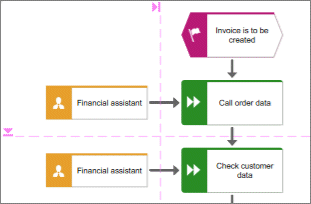
You have enabled the frozen column and row display.
You can unfreeze individual columns/rows from an opened lane model or all frozen columns/rows of lane models and non-lane models at once.
Select the column or row of a lane model you want to unfreeze and click
Freeze/Unfreeze > Unfreeze columns/rows. The selected column or row is no longer frozen.If you have not selected a single frozen column or row of a lane model or opened a non-lane model, click
Freeze/Unfreeze > Unfreeze columns/rows. All frozen lanes are unfrozen.
You have unfrozen individual or all columns/rows of a model.